Managing Assets
Assets are managed on a blog-by-blog basis. Assets are not shared between blogs. Users therefore that have permission to manage assets can view, edit and delete all assets within a blog regardless of who created those assets.
Upload Asset
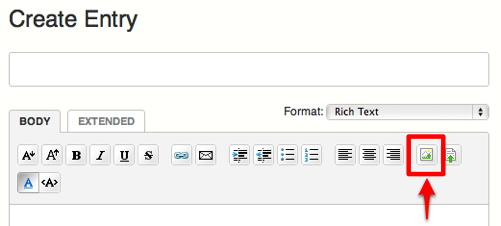
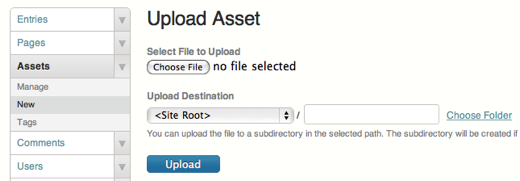
You can upload a new asset from the posting screen and also from the “Upload Asset” menu.
Upload from the Editor
You can upload a new asset by clicking the asset icon on the editor when you are editing a new entry or a page.
Upload Asset from the Menu
Movable Type 5
- Select [Website] or [Blog] under the Navigation
- Select [Assets] > [New] in the Side Menu
Movable Type 4
- Select [Blog] under the Navigation
- Select [Create] > [Upload File] in the Menu
Manage Assets
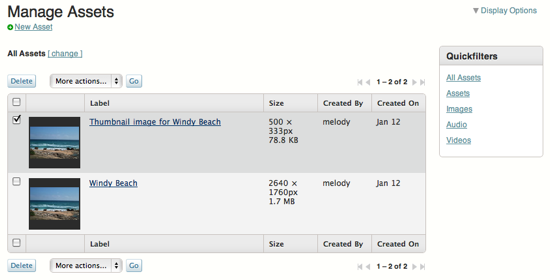
The Manage Pages screen is the primary dashboard used to access and manage your assets. Although more information about each individual page can be obtained or edited through the asset editing screen accessible through the linked title, there are a number of actions you can take right from the asset listing screen.
Movable Type 5
- Select [Blog] under the Navigation
- Select [Assets] > [Manage] in the Side Menu
Movable Type 4
To reach the manage assets screen for an individual blog, click on Manage > Assets from Movable type’s main menu.
Note: While entries and pages have a way to view all entries and pages within the system, one cannot do the same with assets. However, Movable Type does maintain system-level assets, such as userpics.
The listing table on the Manage Pages screen contains the following items:
- Thumbnail A smaller representation of the full size asset.
- Lable: The title of the asset.
- Size: The file size of the asset (if applicable).
- Created By: The user who created the asset.
- Created On: The date the page was last edited by a user.
Filtering your list of assets
You can filter your list of assets on the Manage Assets screen using the Quickfilters tool on the right-hand side of the screen, or through the filter bar at the top of the listing screen.
Quickfilters
The Quickfilters tool enables you to filter the list of assets by type. Plugins that define additional assets types will automatically have quick filters defined for them.
The filter bar
The page listing table also allows you to create a custom filter of your pages. To change your current filter and apply a new one, click on the change link in the filter bar.
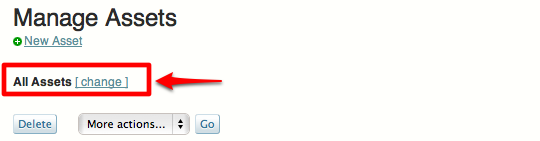
This will expose options in the page filter bar.
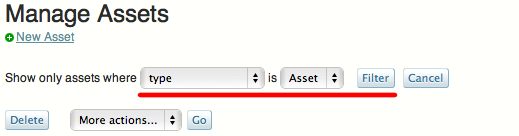
With the page filter bar you can filter on:
- Type: the type of asset (e.g. audio, video, image, etc)
- Tag (exact match): filter pages that are tagged with a particular word, based on an exact match
- Tag (fuzzy match): filter pages that are tagged with a particular word, based on a fuzzy match. With a “fuzzy match” you can enter a partial string of a tag, and it will match any tags that contain that partial string.
Customizing your asset listing display
- The number of rows to display
- Whether your action bar is at the top of the bottom
- Whether your dates are formatted as “full” or displayed in relative terms compared to the current time.
Editing assets
- To edit an asset, click on its asset title. This will take you to the Edit Asset screen.
Deleting assets
- To delete an asset, click on the checkbox to the left of the label to select the asset, then click the “Delete” button in the action bar. The system will ask you to confirm your action.
- After you have confirmed your action, the system will delete the asset from the database, and remove the file associated with that asset (and all of its various thumbnails) from the file system.
Adding or removing tags from assets
The Manage Assets screen allows you to add or remove tags from one or more pages at once. Learn how.
Asset Editing
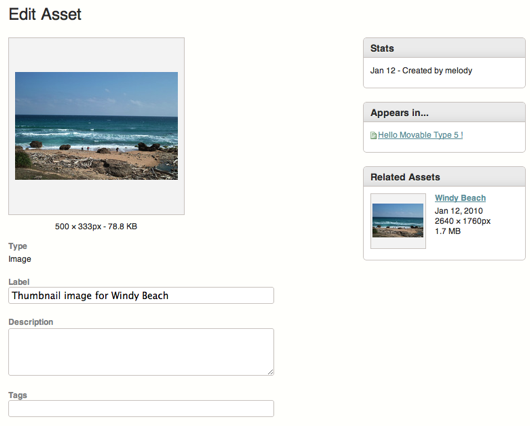
From the asset editing screen you can easily rename the asset, edit the description of the asset, or tag the asset to make to easier to find and re-use later.
Asset Auditing
From the asset details screen you can view a list of all the pages and entries an asset is used. This makes is much easier for you to track down an asset if it needs to removed from a website, or updated site-wide. This view also shows all the permutations of the asset like the various thumbnails that have been generated for it.


PRO IT Service on September 21, 2009, 6:34 a.m. Reply
During my working experience I’ve realized that the ability to edit the “Asset Creation Date” would be very useful as a way of sorting various kind of assets.
Hope this feature is going to be considered for a future release!
Beau Smith on September 22, 2009, 10:47 p.m. Reply
@Mihai - Rather than allow you to edit a date that probably shouldn’t be editable (much like creation date for entries/pages) it’d be better to offer options to sort, organize and group assets in useful ways.
Chris on February 22, 2010, 12:43 a.m. Reply
Have browsed through the documentation it is unclear how the assets are created in the first place. It would be useful to explain to new users that they are created through the Create->Upload File menu link and even more useful to have a link in the assets page to this to make it easier to understand..
Teresa Gowan on January 13, 2011, 10:45 a.m. Reply
Is there any way to upload multiple assets in one process? This would save me no end of time.